
Using Flipgrid for STEM Distance Learning
The following is a guest post from Kim Collazo, a Flipgrid Certified Elementary Teacher:
The COVID-19 pandemic and related school closings have created new challenges for all educators, including STEM teachers and those in the classroom who want to continue engaging their students in STEM activities.
As a STEM lab/classroom teacher, one of my favorite parts of walking my students through the Engineering Design Process, is the time we always take at the end of the lesson for the kids to share out what they did, why they chose different strategies, what worked, what failed, and what they would change if we could do it again.
So, although there are a lot of resources and ideas to provide students with at-home STEM challenges (several great ones will be shared below!), one of the hurdles becomes, how can we see what our students have constructed, and even more importantly, how are we going to find out the thinking behind what they’ve created?

Flipgrid to the rescue! This awesome, free, online tool designed to amplify student voice has been one of my favorites for years, but now, in these unprecedented times for education, it can serve as the bridge to connect STEM educators to their young engineers. Here’s how you can easily make this work:
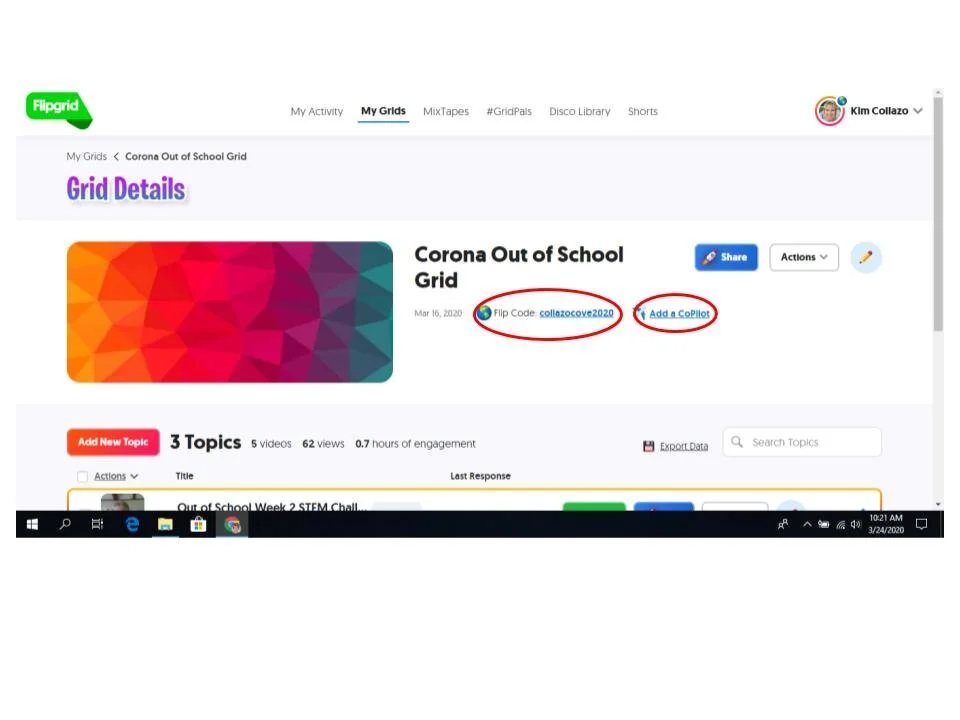
1.) Create an account (or login to your account) on Flipgrid. Create a new “Grid” on your teacher dashboard by clicking the “Add New Grid” button (think of a grid as a large tree that will have many branches called “Topics” full of student videos). I have named my grid “Corona Out of School Grid”. You will notice that every grid has its own “Flip Code” that you can share out so others can access your collection. In addition, if you team teach, you can add what Flipgrid calls a “CoPilot”.
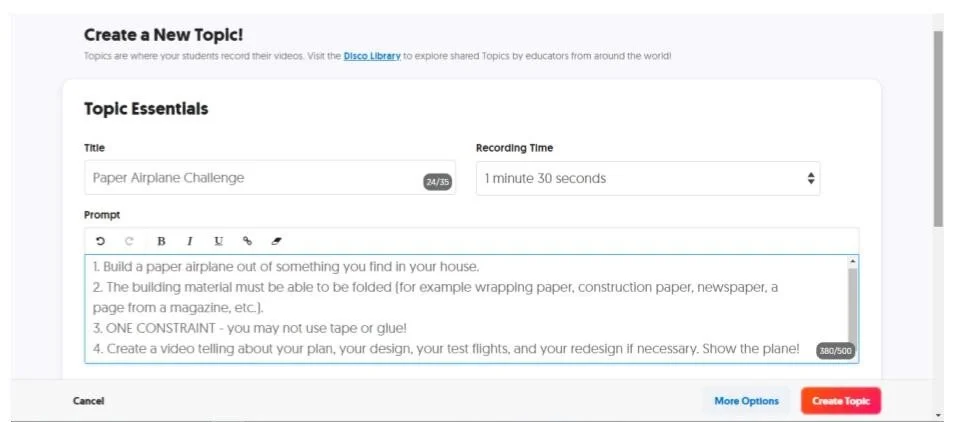
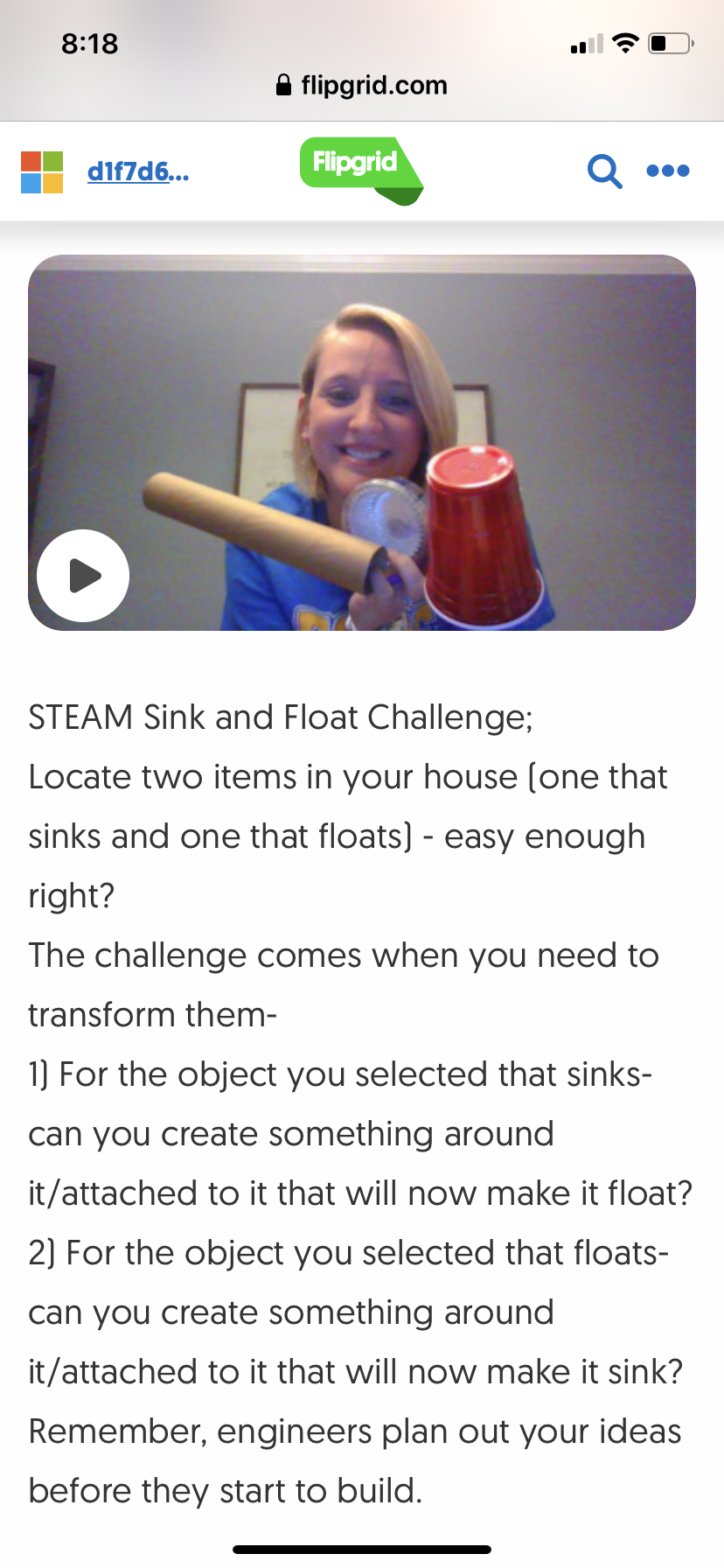
2.) Next you will create a “Topic” (one of the branches of your tree) by clicking the “Add New Topic” button. I’m creating a new Topic for each of the STEM challenges I’m providing my students. The Topic is the place where the students will view your prompt/challenge and be able to add their own video to demonstrate what they have engineered and share their description and thoughts on the process verbally. The fun part! When you create your topic you will be guided through a template where you will give the topic a title (ie. Paper Airplane Challenge), choose how long your respondents will be allowed to record, and enter your prompt/directions in writing. Be very specific in this box so students are clear about what you are challenging them to do.
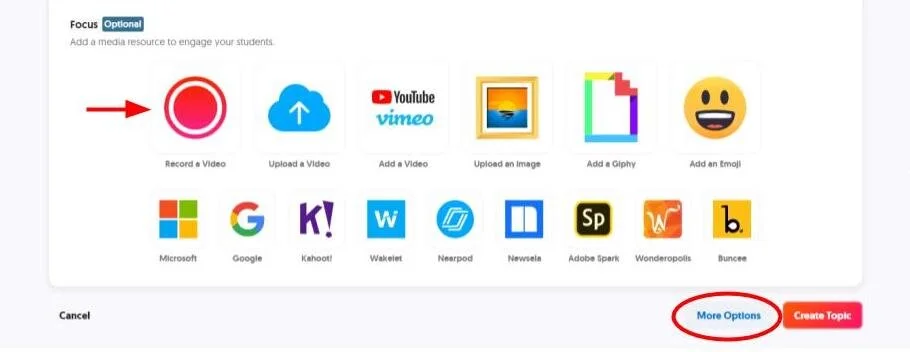
3.) Also on this template you have the option to add various media to the information your students will see when they visit this topic. As many experts have been pointing out, it is very comforting at this time for your students to see and hear you, so I suggest clicking the “Record a Video” icon and, in addition to clarifying the challenge verbally, take a few seconds to tell them how much you miss them!
As you can see from the various media resource choices, there are many ways you can supplement the written prompt you’ve provided. Make sure you then click “MORE OPTIONS” before creating your topic.
4.) As you scroll through the additional options, you’ll be able to toggle on/off moderation, privacy, student reply options, and other settings. Finally, click “Create Topic”!
5.) So how do we best share our new Topic with our students? Flipgrid has made this process very simple! Now that your Topic is listed on your Grid dashboard, click the “Share” button. You will see this pop-up:
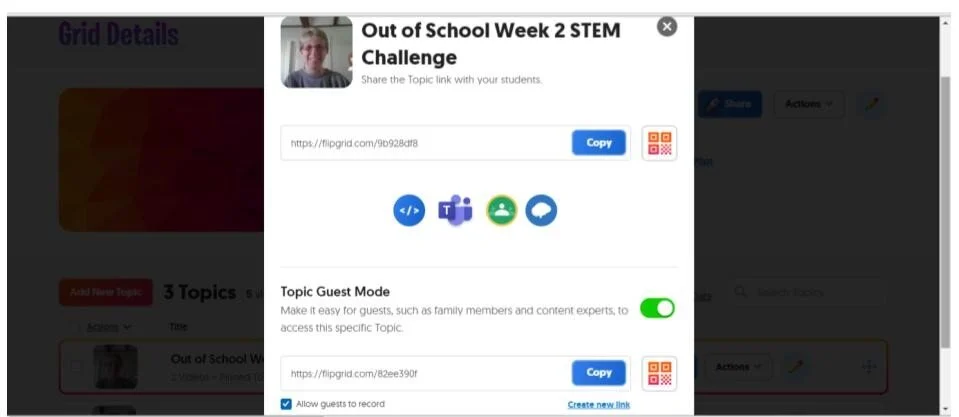
As you can see, your Topic has its own unique URL which you can copy and paste into the LMS, website, email, or social media platform you are using with your students. Additional ways to share include using the icons below the URL box to get the embed code, share to Microsoft Teams, Google Classroom, or on the Remind app seamlessly! In addition, you may want to toggle on the Topic Guest Mode to create a link that makes it simple for others to access the videos easily.
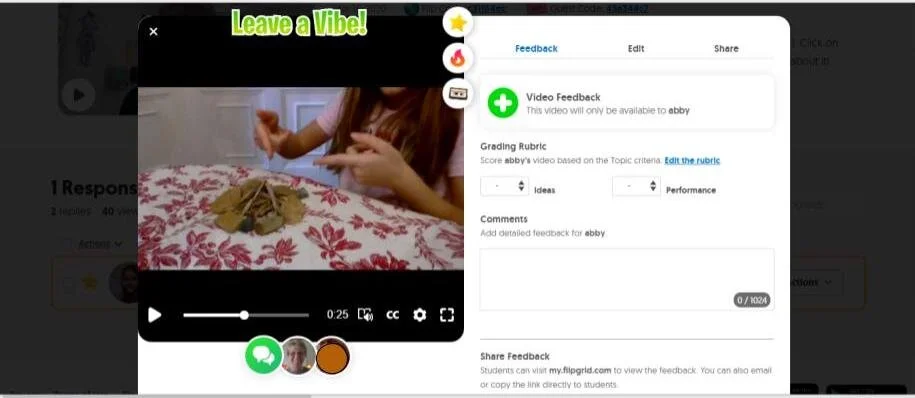
As your students begin adding their videos, you will be able to “like” the video by clicking on the star, leave a video comment by clicking the green circle with speech bubbles beneath the student video, or leave a written comment on the right-hand side.
Don’t forget that some of the best STEM challenges come from the plot in a basic picture book (ie. create a wall from which Humpty Dumpty cannot fall!). Many authors are allowing their books to be read aloud for virtual learning, consider including a read aloud as part of your Topic prompt.
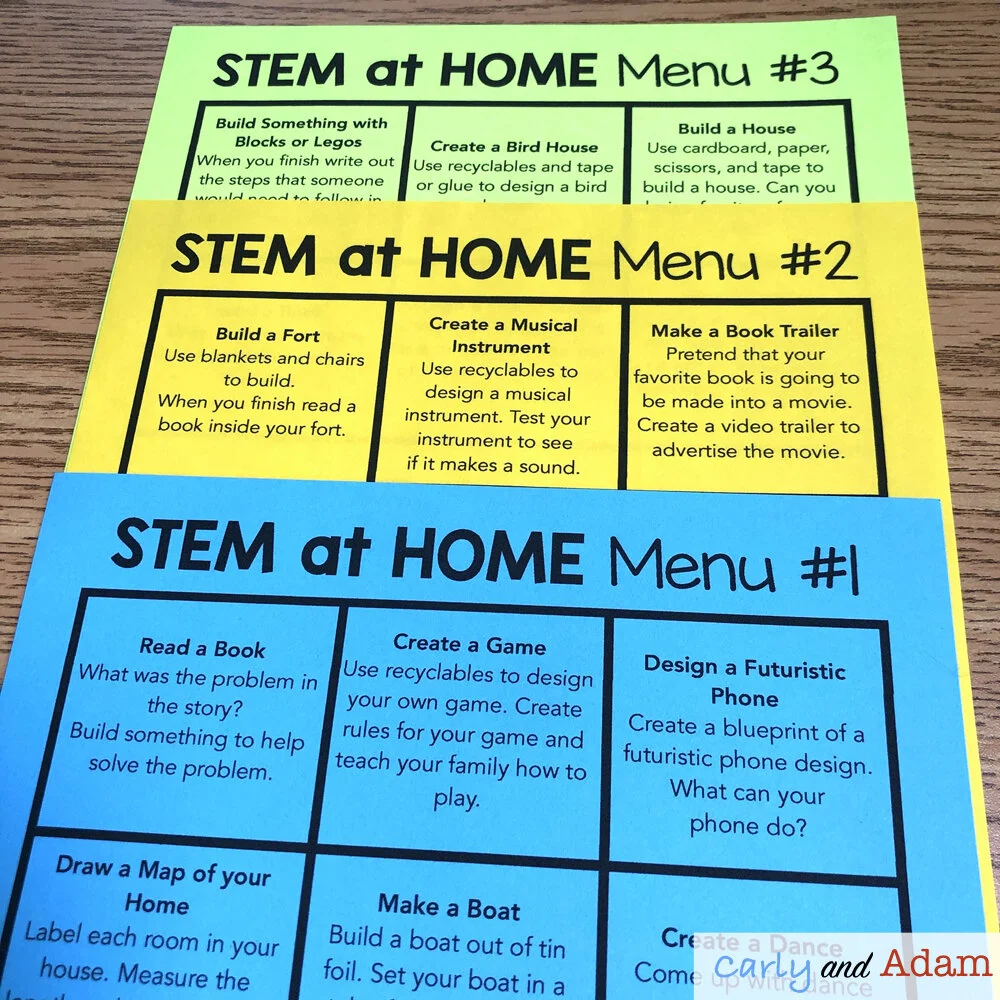
Below are some great resources for STEM challenges to present to your students, and if you would like to see how another STEM educator is using Flipgrid during this new normal, make sure you check out @HRussell_STEAM on Twitter!
Resources:
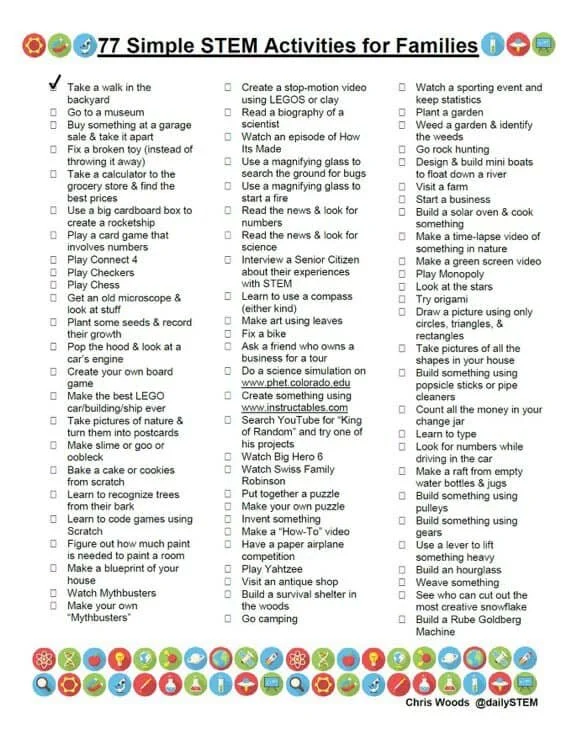
DailySTEM - Chris Woods (@dailystem)
Other STEM teachers engaging students with Flipgrid:
Also, make sure you check out the most current information straight from Flipgrid here:
https://blog.flipgrid.com/remotelearning
Join our FREE Facebook group Elementary STEM Teachers Club!
We hope you have found this blog post helpful. To stay connected with Carly and Adam's teaching tips and classroom freebies be sure to follow us on Facebook, Pinterest, Teachers Pay Teachers, and subscribe to our blog!
