A kindergarten student doesn’t need to be on a device to practice what to do when something unexpected pops up. Before December routines get busy, use our Kindergarten Online Safety Sorting Lesson to give students a chance to talk through online choices with a paper sort and a simple phrase they can remember: stop and ask a grown-up.
As an Amazon Associate, Carly and Adam earn from qualifying purchases.
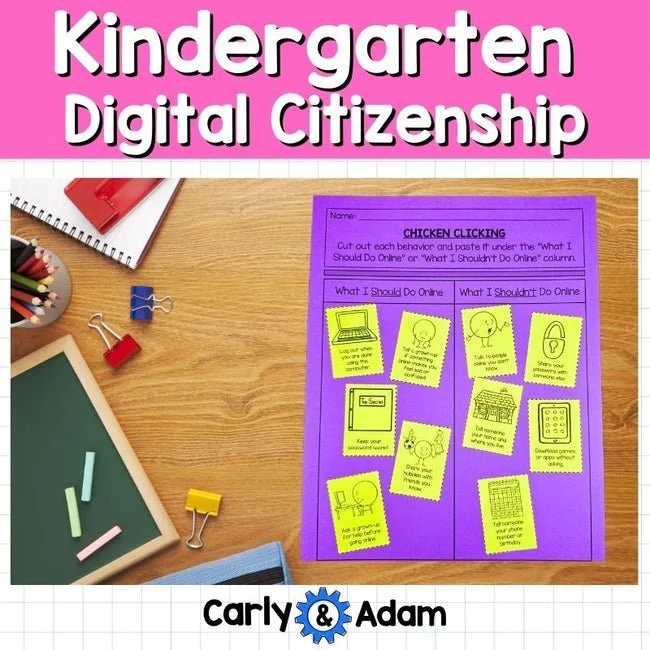
Kindergarten digital citizenship cover showing the online safety sorting activity. Ask students what they’ve done on a computer, tablet, or phone. Then give them a pretend situation: a new screen pops up while they’re watching something. What could they do before touching it? If you’re using the lesson, pause during the story and ask what Chicken could have done before going online. Give students a moment to tell a partner before you collect answers. Teach kindergarten students what to do when they’re unsure about an online choice with a digital citizenship lesson built around a cut-and-paste sort. Start with a familiar device scenario and use the optional picture book read-aloud to talk about choices the character could make differently.
Start with a choice children recognize
Ask students what they’ve done on a computer, tablet, or phone. Then give them a pretend situation: a new screen pops up while they’re watching something. What could they do before touching it? If you’re using Chicken Clicking, pause during the story and ask what Chicken could have done before going online. Give students a moment to tell a partner before you collect answers.
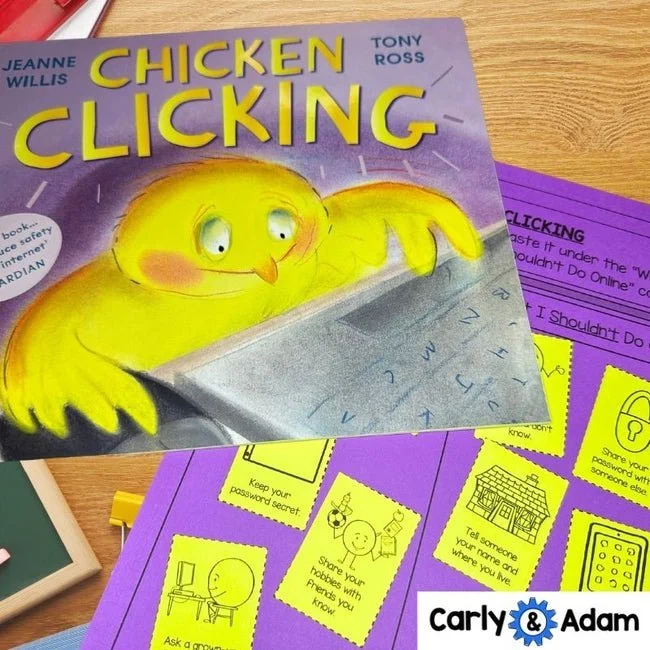
Picture book beside a set of bright paper online safety cards. The lesson includes teacher and student directions, vocabulary cards, a cut-and-paste sorting activity, and editable Canva slides. Set out copies of the sort, scissors, glue sticks, and crayons, markers, or color sticks. Introduce vocabulary such as “going online” and “personal information” in everyday language. Use fictional examples so students never have to share their own information. Teach kindergarten students what to do when they’re unsure about an online choice with a digital citizenship lesson built around a cut-and-paste sort. Start with a familiar device scenario and use the optional picture book read-aloud to talk about choices the character could make differently.
Set up the cut-and-paste sort
The lesson includes teacher and student directions, vocabulary cards, a cut-and-paste sorting activity, and editable Canva slides. Set out copies of the sort, scissors, glue sticks, and crayons, markers, or color sticks. Introduce vocabulary such as “going online” and “personal information” in everyday language. Use fictional examples so students never have to share their own information.
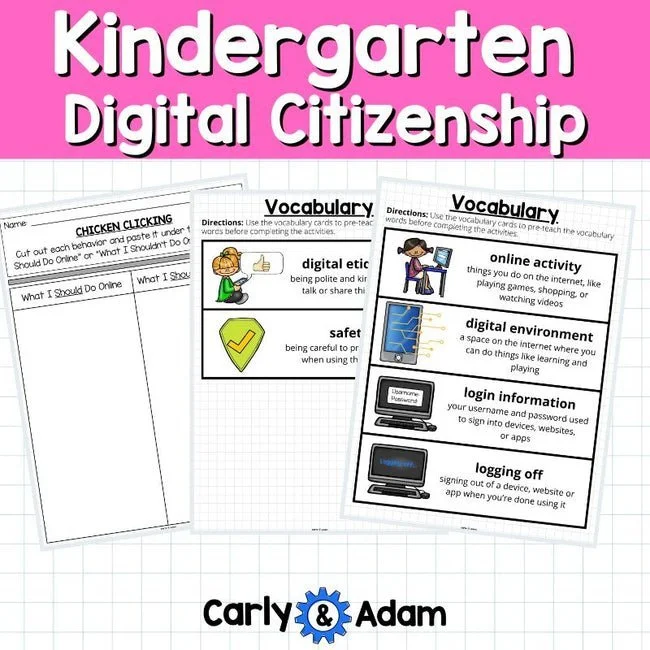
Preview of illustrated digital citizenship vocabulary cards. Model one behavior aloud. Ask students to place the behaviors under “What I Should Do” or “What I Shouldn’t Do.” As a classroom tip, let students move the pieces around before gluing. If a student changes their mind after talking with a partner, ask what helped them decide. For students who need support, offer a few pieces at a time, read the labels aloud, or pre-cut the cards. Teach kindergarten students what to do when they’re unsure about an online choice with a digital citizenship lesson built around a cut-and-paste sort. Start with a familiar device scenario and use the optional picture book read-aloud to talk about choices the character could make differently. It closes with a partner share that turns a paper activity into an action children can remember.
Sort first, glue second
Model one behavior aloud. Ask students to place the behaviors under “What I Should Do” or “What I Shouldn’t Do.” As a classroom tip, let students move the pieces around before gluing. If a student changes their mind after talking with a partner, ask what helped them decide. For students who need support, offer a few pieces at a time, read the labels aloud, or pre-cut the cards.
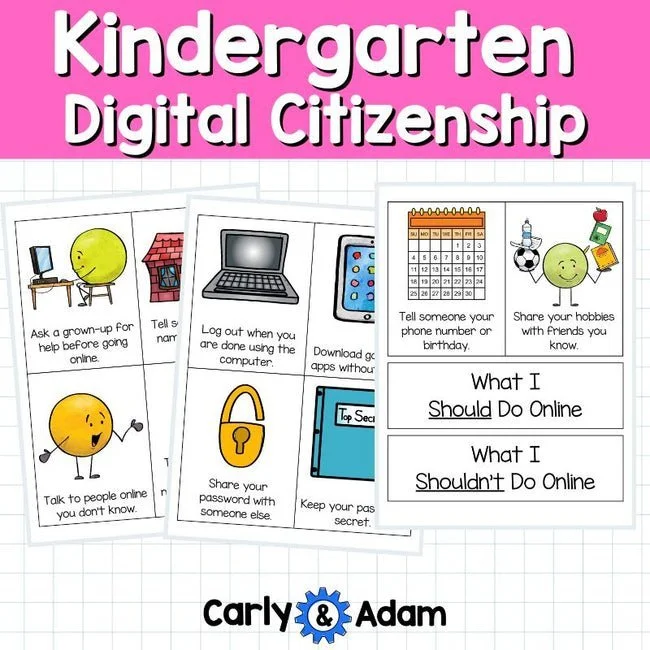
Behavior cards and the two-column online safety sorting sheet. Bring the class back together and choose a behavior from each column to discuss. Ask why it belongs there and what the student could do next. End by having children tell a partner one action they’ll try, such as “I’ll stop and ask an adult to look with me.” Revisit that same phrase the next time the class opens a new app. Teach kindergarten students what to do when they’re unsure about an online choice with a digital citizenship lesson built around a cut-and-paste sort. Start with a familiar device scenario and use the optional picture book read-aloud to talk about choices the character could make differently. Then model one behavior and let students sort the rest into things they should and shouldn’t do online.
Give students a line they can use
Bring the class back together and choose a behavior from each column to discuss. Ask why it belongs there and what the student could do next. End by having children tell a partner one action they’ll try, such as “I’ll stop and ask an adult to look with me.” Revisit that same phrase the next time the class opens a new app.
Get the Kindergarten Online Safety Sorting Lesson in Carly and Adam’s store.
Spend Less Time Planning and More Time Teaching!
Find ready-to-use lessons, professional development, and a community of educators in the STEM Teachers Club.